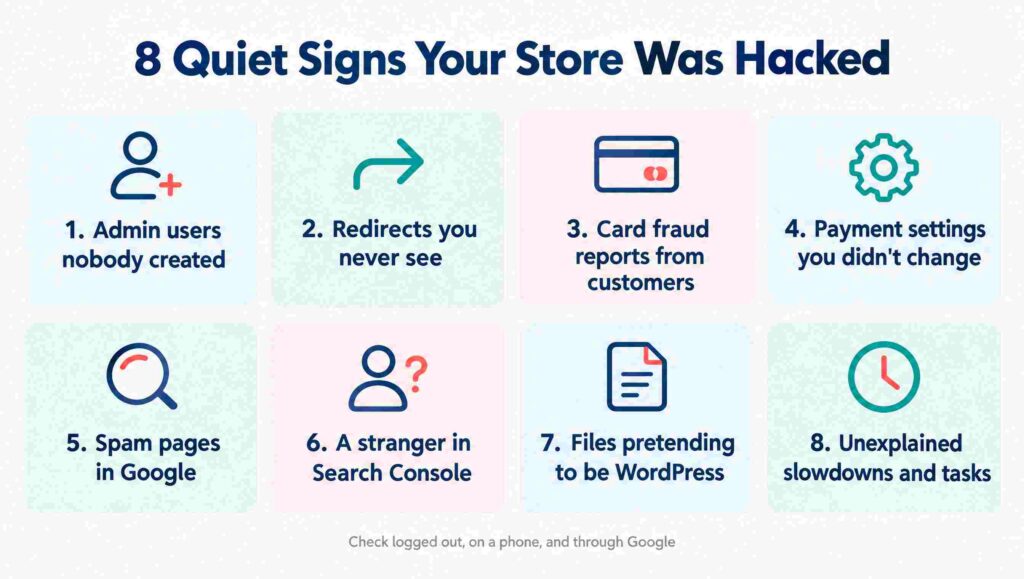
TL;DR: Some malware is built to stay out of the store owner’s sight. It skips logged-in admins, hides card skimmers in the database and quietly changes payment details. Check your store the way a stranger sees it: logged out, on a phone, through Google and inside your payment settings. Each of the 8 checks below takes about five minutes.
You log in, click around, and your store looks fine. Orders are still coming in. So you assume nothing is wrong.
That assumption is exactly what some attackers count on. The signs your WooCommerce store has been hacked aren’t always the loud ones, like a defaced homepage or a dashboard you can’t log into. Security firm Sucuri has documented redirect malware that deliberately does nothing for logged-in WordPress users, so the person most likely to notice it never does.
This guide covers 8 quieter signs that store owners often miss, why they slip past, and a quick check for each one. Most need nothing beyond your WordPress dashboard and a Google search, and none require server access.

The 8 signs at a glance
| Sign | Where to check | Time |
|---|---|---|
| 1. Admin users nobody created | Users screen | 2 minutes |
| 2. Redirects you never see | Your store, logged out, on a phone | 5 minutes |
| 3. Customers report card fraud after buying | Widgets screen, a test order | 5 minutes |
| 4. Payment settings you didn’t change | WooCommerce > Settings > Payments | 5 minutes |
| 5. Spam pages Google finds before you do | A site: search, Search Console | 5 minutes |
| 6. A stranger verified in Search Console | Search Console users list | 2 minutes |
| 7. Files or plugins pretending to be WordPress | Plugins screen, a file scan | 5 minutes |
| 8. Slowdowns and scheduled tasks you can’t explain | Cron list, host dashboard | 5 minutes |
1. Admin users nobody created
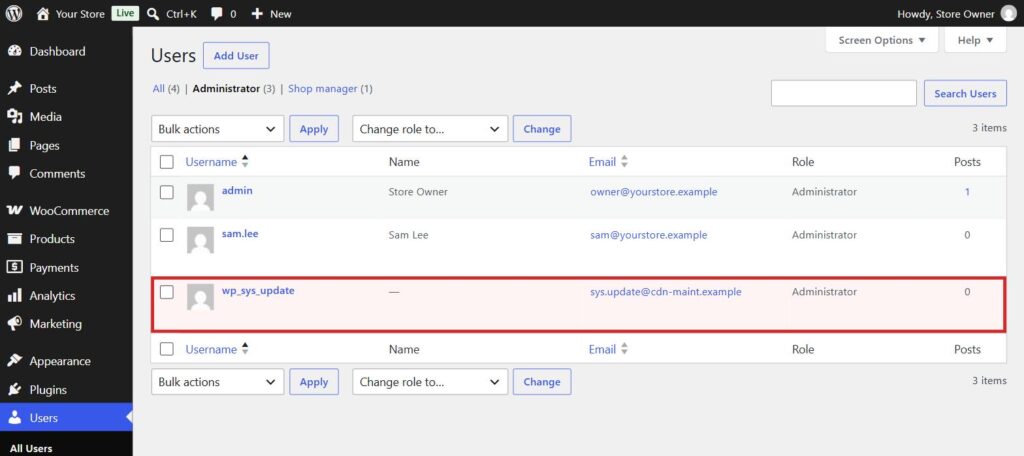
An administrator or Shop Manager account you don’t recognize is one of the clearest signs someone got into your store.
Owners miss this because few people open the Users screen after launch. An account an attacker created can sit there for months, and its name often looks routine at a glance.
The 5-minute check: In your dashboard, go to Users and filter by Administrator, then by Shop Manager. The Shop Manager role can change products, orders and many WooCommerce settings, so it matters too. Compare every account against the people who should have access today. Note the email address and, if your setup shows it, the date each one was added.
What it usually means: someone created a way back in. Write down the account details before you remove it, because the creation date can help you work out when and how the break-in happened.
2. Redirects you never see
Some redirect malware only fires for visitors who aren’t logged in, so the site looks normal every time you check it.
Sucuri documented one example in January 2025. The code sat in a theme file called functions.php and sent visitors to harmful sites. It also skipped logged-in WordPress users and filtered out search engine bots. Sucuri’s write-up says that was likely done “to avoid raising suspicion among site administrators.”
The 5-minute check: Open your store in a private or incognito window so you’re logged out. Then try it on your phone using mobile data, and click through to your store from a Google search result. Ask a friend or family member to do the same from their own device. Watch for any jump to a site you don’t own, especially after the first click.
While you’re in the dashboard, go to Plugins and look for anything you didn’t install. In June 2025, Sucuri analyzed a malicious plugin named to look like part of WordPress, with “WordPress Core” listed as its author. It also stayed quiet for logged-in users.
Watch Out: “It works fine for me” is the least useful test you can run on a store you think might be hacked. You’re the one visitor some malware is built to ignore.
3. Customers report card fraud after buying
If more than one customer reports fraud on a card they used at your store, a checkout skimmer is a real possibility.
A card skimmer is code that copies payment details as customers type them and sends them to the attacker. Owners often miss it because orders still go through. The store works. The customer only finds out weeks later on their card statement.
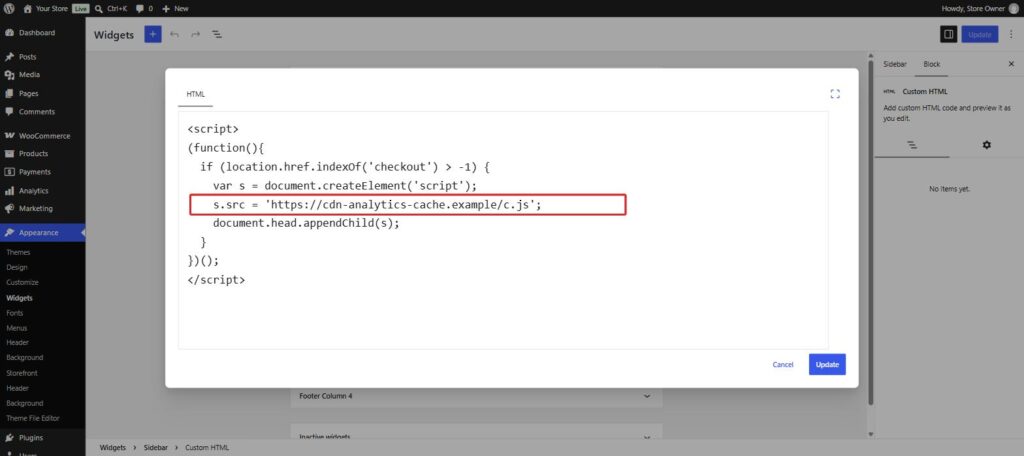
Skimmers don’t always live in files. In January 2025, Sucuri described one hidden in the WordPress database, inside a Custom HTML widget. It only switched on for pages with “checkout” in the web address, and it could either show a fake payment form or read the details from the real one.
In March 2025, Sucuri described another checkout skimmer that came with a hidden file manager disguised as a WordPress core file. The signs there included checkout problems that came and went.
The 5-minute check: Go to Appearance > Widgets and open every Custom HTML block. Look for code inside <script> tags that you or your developer didn’t add. Then place a small test order while logged out. Watch for a second card form, a form that looks different from usual, or a payment step that behaves oddly.
If customers start reporting fraud, talk to your payment provider right away. LearnWoo’s guide to preventing fraud on your WooCommerce store covers the order-side protections worth adding afterward.
Pro Tip: A skimmer stored in the database can leave no new files behind at all. A check that only looks at files can miss it, so look at your widgets and test the checkout yourself.
4. Payment settings you didn’t change
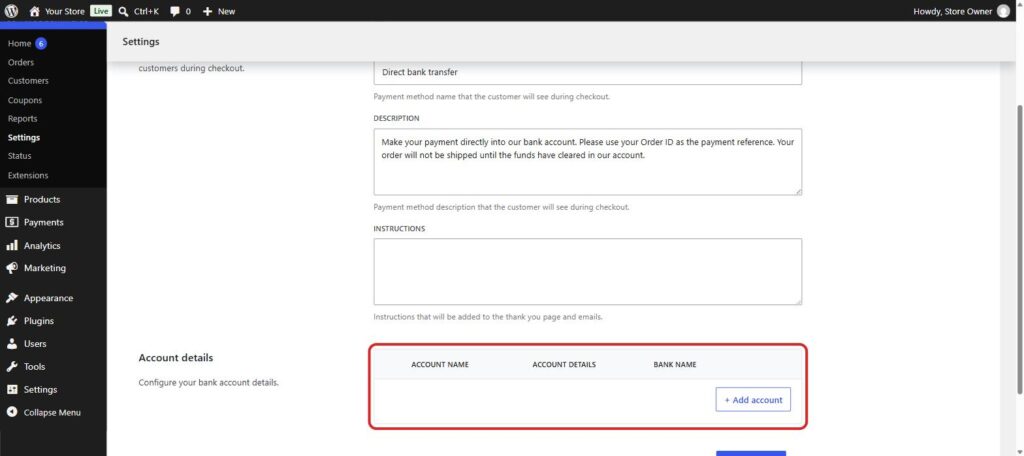
Changed payment details, especially bank transfer account details, can send your money to someone else without any visible error.
WooCommerce gives you one built-in alarm: it emails the store admin when a payment gateway is enabled. If you get that email and you didn’t turn anything on, treat it as a warning.
Bank transfer details are harder. An open request on WooCommerce’s GitHub asks for alerts when those account details change. The request explains the risk plainly: a silent change redirects payments, and the merchant only finds out when customers say they paid but the money never arrived. It could happen through a compromised Shop Manager account or a malicious plugin.
The 5-minute check: Go to WooCommerce > Settings > Payments. Open each payment method you have enabled. Confirm the bank account details, PayPal email address and any connected account names match your own records. Then check Settings > General in WordPress and make sure the admin email address is still yours, since that’s where the gateway alerts go.
What it usually means: if anything in those screens changed without you, treat it as a breach even if the rest of the store looks fine.
5. Spam pages Google finds before you do
Hacked stores often get spam pages added in bulk, and Google can index them long before the owner notices.
You won’t find these pages in your menus. They often sit at web addresses nobody links to, selling replica goods or pills, sometimes in another language. Google’s own web.dev guide to this kind of hack gives owners three checks.
The 5-minute check:
- Search Google for site:yourstore.com (using your own domain). Scroll through the results for titles you didn’t write.
- Open the Security Issues report in Google Search Console to see whether Google has flagged hacked content.
- Paste a suspicious URL into Search Console’s URL Inspection tool.
That third step matters because of cloaking, where hacked pages show spam to Google and a normal-looking page to you. Google’s guide warns that attackers use it to make you think a page is gone or fixed when it’s still hacked.
Key Insight: “I clicked the link and it looked fine” doesn’t prove a page is clean. URL Inspection shows you what Google actually sees.
6. A stranger verified in Google Search Console
An email telling you someone you don’t know has verified your site in Google Search Console is a strong sign your store has been hacked.
Google says this directly in its web.dev guide. Owners miss it because the email looks like routine account noise, or it goes to an old address nobody checks.
The 5-minute check: In Search Console, open Settings > Users and permissions. Before removing an owner or user you don’t recognize, note the verification method they used. It’s often a small file uploaded to your site or a tag added to your pages. Remove the user, then remove that file or tag too, or they can verify again.
7. Files or plugins pretending to be WordPress
Malicious files often borrow WordPress names so they blend in with the real thing.
Both Sucuri cases above used this trick. One hid a file manager behind a name that looked like a WordPress core file, and it only appeared when a specific browser cookie was present. The other was a plugin with “WordPress Core” listed as its author. WordPress core itself never shows up as a plugin, so that alone is a giveaway.
The 5-minute check: On the Plugins screen, look for anything you don’t recognize, anything authored “WordPress Core,” and anything with a vague name and no description. Use a security scanner that compares your WordPress core files to clean copies, or ask your host or developer to do it. Also ask whether there are any files ending in .php in your uploads folder, since that folder normally holds images and documents.
Plugins are the usual way in. Patchstack’s 2026 security report found that 91% of the WordPress vulnerabilities disclosed in 2025 were in plugins and 9% were in themes. LearnWoo’s guide on dealing with WooCommerce vulnerabilities is a good next read.
8. Slowdowns and scheduled tasks you can’t explain
A store that suddenly slows down, or has scheduled tasks nobody set up, may be running someone else’s code.
This is the weakest sign on its own, because slow sites have plenty of innocent causes: a heavy new plugin, a traffic spike or a busy server. It matters most when it shows up alongside one of the other signs.
The 5-minute check: Use a plugin that lists scheduled tasks (often called a cron viewer), or your host’s control panel. A cron job is a task set to run automatically on a schedule. Look for ones you can’t trace to a plugin you use. Check your host’s resource or bandwidth alerts, and ask your host whether your database has grown suddenly.
What to do if you spot one
Don’t start deleting things in a panic. Save the evidence first, lock down access, and then clean.
- Back up the store as it is, files and database, and label the copy as infected.
- Reset passwords for every administrator and Shop Manager, plus your hosting account and payment provider logins.
- Check your payment settings again and correct anything that changed.
- Tell your host. They can check other sites on your account and their own logs.
- Clean the store, or bring in someone who does this regularly.
- If card data may have been exposed, contact your payment provider. The FTC’s data breach guide also tells businesses to check which notification laws apply to them.
Once the store is clean, keep watching it. (Disclosure: I work at Guardian Gaze.) Guardian Gaze is an AI-powered WordPress malware scanner and website security monitoring platform that detects malicious code, suspicious file changes, compromised plugins and themes, and other indicators of compromise. Its analysis runs outside the site, so a hacked store isn’t checking itself.
Quick Win: Put these 8 checks on your calendar for the first Monday of every month. Most take two to five minutes.
Frequently asked questions
How do I know if my WooCommerce store has been hacked?
Look for the quiet signs as well as the obvious ones: admin or Shop Manager accounts you didn’t create, redirects that only appear when you’re logged out, payment details you didn’t change, and spam pages in a Google site: search. Check while logged out and on a phone, since some malware skips logged-in admins.
Can a plugin get my WooCommerce store hacked?
Yes, and plugins are the most common weak point. Patchstack found that 91% of the WordPress vulnerabilities disclosed in 2025 were in plugins. Keep plugins updated, delete ones you don’t use, and only install plugins from sources you trust.
How do card skimmers get onto WooCommerce checkout pages?
Usually through a weakness that lets an attacker add code to the site, such as an outdated plugin or a stolen admin login. Sucuri has documented skimmers stored in the database inside a widget and others added to checkout code, so check your widgets and test your checkout while logged out.
Does WooCommerce tell me when payment settings change?
Partly. WooCommerce itself emails the store admin when a payment gateway is enabled. Changes to bank transfer account details don’t have the same alert, according to an open request on WooCommerce’s GitHub. Check your payment settings yourself every month.
What should I do first if I think my store is hacked?
Back up the store as it is, then reset every admin, Shop Manager, hosting and payment provider password. Check your payment settings, tell your host, and then clean the site or get help. Avoid deleting suspicious files before you’ve saved a copy.
Do I have to tell customers if my store was hacked?
It depends on what was exposed and where you and your customers are. The FTC’s data breach guide tells businesses to check the notification laws that apply to them. If card data may be involved, contact your payment provider first. This isn’t legal advice, so check with a lawyer if you’re unsure.
Check your store the way a stranger sees it
The hacks that last longest are usually the quiet ones. Once a month, look at your store logged out, on your phone, through Google and inside your payment settings. Those few minutes cover the blind spots most owners never check.
About the author
DeShea Witcher handles partnerships at Guardian Gaze, an AI-powered WordPress malware scanner and website security monitoring platform that detects malicious code, suspicious file changes, compromised plugins and themes, and other indicators of compromise. He writes about how WordPress and WooCommerce sites get compromised and how owners recover. guardiangaze.com/wp