Black Friday falls on 27 November this year. That leaves a little over three weeks, and the advice you will read between now and then is close to unanimous: install a caching plugin, put a CDN in front of the site, compress your images.
That advice is not wrong. It is just aimed at a different problem.
Page caching makes one visitor’s product page load faster. Black Friday is not a page-speed problem, it is a concurrency problem — not “how quickly does this page render for one person” but “what happens when four hundred people are sitting in the cart at once and none of those requests can be served from cache.” Different problem, different fixes, and the second one is barely touched by WooCommerce’s own performance documentation.
The quick answer
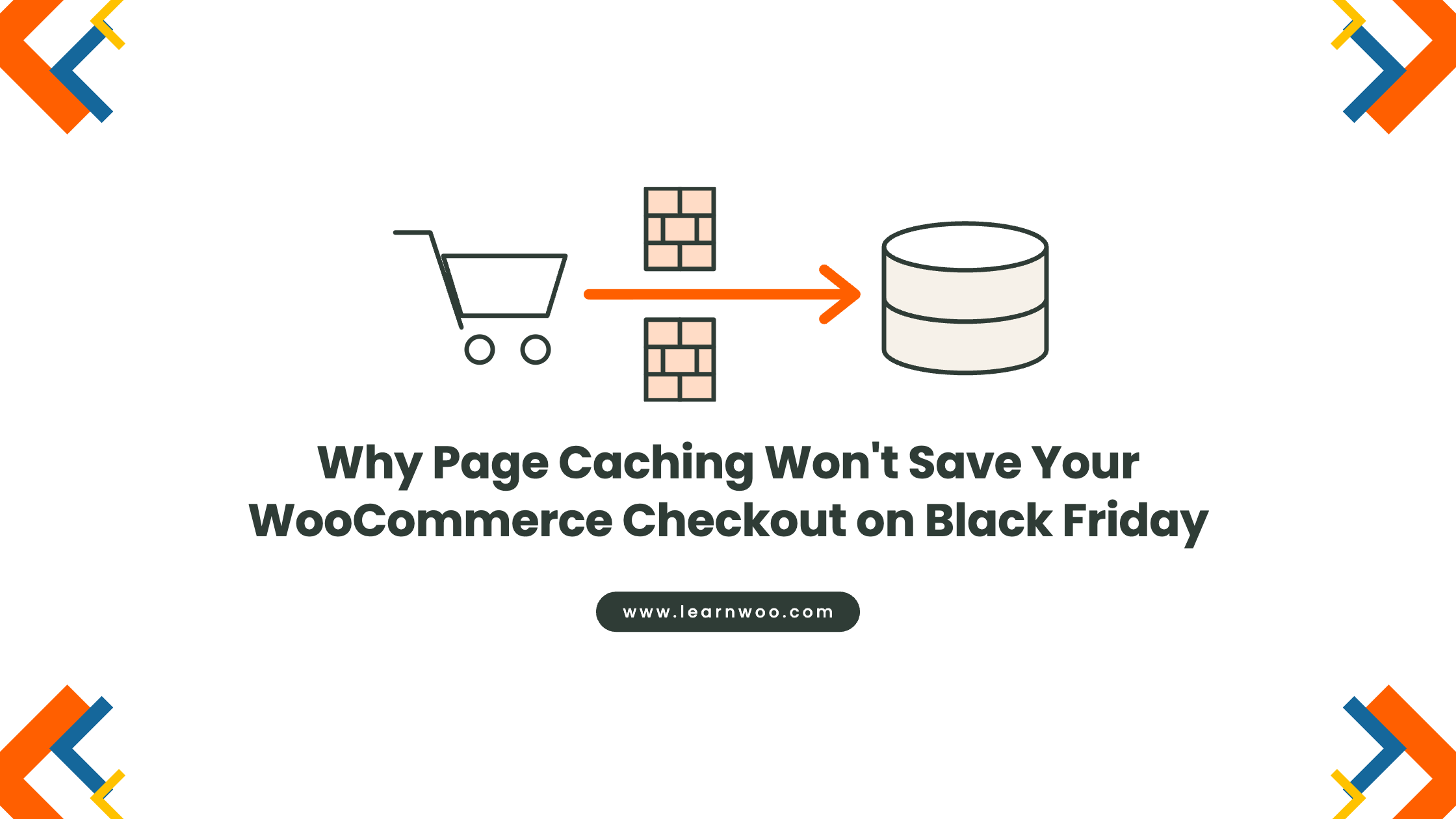
Cart, Checkout and My Account are excluded from page caching by design — they have to show each customer their own data. So every request that matters on Black Friday goes straight to PHP and the database. The three things that actually fail are PHP workers exhausted by uncacheable requests, a silent Action Scheduler backlog that delays emails and stock syncs for hours, and order-table write contention. None of those are fixed by a caching plugin. Fix them in that order.
Page caching covers your catalogue, never your checkout
WooCommerce’s caching documentation is blunt about this. It names three pages you must keep out of the cache — Cart, My Account and Checkout — because, in its words, “these pages need to stay dynamic since they display information specific to the current customer and their cart.”
The Varnish example in the same guide spells out the rule in a single line:
if (req.url ~ "^/(cart|my-account|checkout|addons)") { return (pass); }
if ( req.url ~ "\?add-to-cart=" ) { return (pass); }
Note the second line. It is not only the three pages — every add to cart request bypasses the cache too. The moment a shopper stops browsing and starts buying, your cache stops helping.
Behaviour differs by plugin, which is where stores get caught out. WooCommerce tells WP Super Cache not to cache those pages, so it handles the exclusion itself. WP Rocket does not — the documentation asks you to exclude Cart, Checkout and My Account in its settings yourself. W3 Total Cache needs mfunc added to its “Ignored comment stems” list under Minify. If you have never checked which applies to your stack, do that today rather than in three weeks.
There is a related trap worth knowing: a cached My Account page can put customers into a stuck password-reset loop, because the host serves a stale version of a page that was supposed to react to their reset link. Some server-side caches do not exclude it automatically.
Failure mode 1: PHP workers, not page speed
Your host sells you a number of PHP workers — concurrent PHP processes. It is usually a small number: single digits on shared hosting, perhaps a few dozen on a managed plan. A cached product page costs you none of them. A checkout request occupies one for its entire duration, including the seconds it spends waiting on a payment gateway.
When every worker is busy, new requests queue. When the queue is longer than the timeout, visitors get a 502 or 504. The site does not gradually get slower — it is fine, and then it is down.
There is a second source of uncacheable requests that catches people out, and notably it is not mentioned anywhere in WooCommerce’s official performance docs: cart fragments. If “Enable AJAX add to cart buttons on archives” is switched on under WooCommerce → Settings → Products, pages that display a cart total fire a background request to ?wc-ajax=get_refreshed_fragments. That request exists specifically to return the current shopper’s cart, so it can never be cached. On a nicely cached catalogue, each visitor can still generate an uncacheable PHP request on every single page view.
Which leads to the counterintuitive part, and the thing most Black Friday advice gets backwards:
Improving your page cache does not reduce load in proportion to traffic. It strips out the cheap requests and leaves behind a workload made almost entirely of expensive ones. A store with a 95% cache hit rate can still exhaust its PHP workers on the remaining 5%.
This is why a Lighthouse score tells you very little about Black Friday. WooCommerce’s performance documentation sets a target of “a Chrome Core Web Vitals ‘Performance’ score of 90 or above on a simple Woo site” — a perfectly reasonable goal for SEO and for everyday shoppers, and almost unrelated to whether you survive a four-hour sales spike. One measures a single empty-handed visitor. The other is about several hundred simultaneous ones holding carts.
Failure mode 2: the Action Scheduler backlog nobody is watching
This is the one that does the quiet damage, because the store itself never looks broken.
Action Scheduler is the background job queue bundled with WooCommerce. Every order you take schedules work through it: customer emails, stock updates, webhooks, subscription renewals, marketplace syncs, ERP pushes, analytics events. On a normal Tuesday the queue drains as fast as it fills. On Black Friday it does not, and the reason is in the defaults.
Straight from the Action Scheduler documentation: it claims 25 actions per batch, runs one concurrent batch, and processes actions for a maximum of 30 seconds per request. It stops early if 90% of available memory is used, or if processing another three actions would push it past that 30-second ceiling. The queue is kicked off by WP-Cron roughly every minute, plus an async loopback request on admin page loads.
Those numbers are deliberately conservative, chosen so a background queue can never take down a shared-hosting site. They are not throughput settings. If each order schedules eight actions and you take ten times your usual volume in four hours, arrivals overtake the drain rate and the backlog grows all afternoon.
The symptoms are not what people look for:
- Order confirmation emails landing three hours after checkout — so customers email support asking whether the order went through.
- Stock levels not syncing out to Amazon, eBay or your POS, so you oversell.
- Your accounting or ERP integration missing the busiest day of the year.
- Abandoned-cart automations firing on Sunday for a cart created on Friday.
Then there is the rule that turns a delay into data loss. The documentation states that “if an action runs for more than 5 minutes, Action Scheduler will assume the action has timed out and will mark it as failed.” Under heavy load, perfectly healthy actions get marked failed — not because your code is broken, but because the server was busy when their turn came. Since version 4.0.0 failed actions are kept for three months by default, which at least means you can go back and find them in December.
| Setting | Default | Peak-season verdict |
|---|---|---|
action_scheduler_queue_runner_batch_size |
25 actions | Safe to raise — the docs’ own example uses 100. Raise it with memory headroom in mind. |
action_scheduler_queue_runner_time_limit |
30 seconds | Check your host first — WP Engine caps requests at 60s, Pantheon and SiteGround at 120s. Setting it above your host’s limit does nothing. |
action_scheduler_queue_runner_concurrent_batches |
1 batch | Leave it alone — the documentation warns this “can substantially increase server load and take down a site.” |
| Queue trigger | WP-Cron + admin loopback | Replace it — WP-Cron only fires when someone visits. Use a real system cron running WP-CLI. |
The instinct, when the queue is behind, is to raise the concurrency. Resist it. Action Scheduler’s own documentation says WP-CLI “is a better method to achieve higher throughput”, and that is the fix: a real server cron calling the CLI runner, rather than hoping WP-Cron fires often enough.
wp action-scheduler run --batch-size=100 --batches=0A detail worth knowing: the CLI’s own --batch-size default is 100, not the 25 used for in-request runs, so the CLI runner is already four times faster out of the box. --batches=0 means “keep going until the queue is empty”. If you need more throughput still, the docs suggest --group to run separate runners per action type, while warning that this can break the ordering between related actions — so do not split a group whose actions depend on each other.
Failure mode 3: where your orders are stored
If your store predates WooCommerce 8.2 and nobody has touched it since, your orders are almost certainly still in wp_posts and wp_postmeta — the same two tables as every blog post, page, revision and autosave on the site. High-Performance Order Storage (HPOS) moves them into four purpose-built tables: wc_orders, wc_order_addresses, wc_order_operational_data and wc_orders_meta.
WooCommerce describes the benefit as “fewer read/write operations and fewer busy tables”, which matters most precisely when hundreds of orders are being written at once. HPOS has been the default for new installations since 8.2 — but existing stores are explicitly not migrated automatically. The documentation calls it “completely opt-in”. A store set up in 2021 that has simply been kept updated is still on the old structure.
Do not migrate this month
The HPOS backfill processes 25 orders at a time through background actions — the very queue you are about to overload. Starting a migration of years of order history in late November means competing with your own Black Friday traffic for the same workers. Check which storage you are on under WooCommerce → Settings → Advanced → Features, write the answer down, and schedule the migration for a quiet week in January.
What to do with the three weeks you have left
In rough order of payoff per hour spent.
- Verify your cache exclusions with a real cart. Add a product, then load the cart and checkout in a private window and check the response headers for a cache HIT. Do not trust the plugin’s settings screen — test it. If you are on WP Rocket, assume you need to add the exclusions yourself.
- Ask your host how many PHP workers you have. It is the single most useful number for capacity planning and it is almost never on the pricing page. If the answer is a single digit and you expect hundreds of concurrent shoppers, that is your bottleneck and no plugin will fix it.
- Replace WP-Cron with a real system cron. Set
DISABLE_WP_CRONto true inwp-config.phpand runwp cron event run --due-nowfrom the server’s crontab every minute. WP-Cron only fires when someone loads a page, which means it is least reliable exactly when you need it most. - Add a WP-CLI Action Scheduler runner using the command above, on its own schedule, so background work does not depend on visitor traffic at all.
- Count the actions one order creates. Place a test order, then open WooCommerce → Status → Scheduled Actions and look at what appeared. Multiply by your expected peak orders. If that number is uncomfortable, now is the time to find out which plugin is responsible — CRM and ERP integrations in particular can schedule several actions per order and retry each one.
- Clear the existing backlog now. If you already have thousands of pending or failed actions sitting in the queue in early November, you are not starting from zero — you are starting from behind.
- Load test the uncacheable path, not the homepage. Hammering your front page gives you a flattering number, because that page is cached. Script the real journey: product page, add to cart, cart, checkout. Standard speed-test tools are useful for Core Web Vitals, but they measure one visitor at a time — concurrency needs a load-testing tool driving a full cart.
- Then freeze. Get your updates done in the first half of November and stop. Our guide to what to update and what to freeze before Black Friday covers where to draw that line.
Common mistakes
- Treating a good PageSpeed score as readiness. It measures one visitor on a cached page. Black Friday is hundreds of visitors on uncached ones.
- Raising Action Scheduler concurrency when the queue falls behind. The documentation explicitly warns it can take the site down. Use WP-CLI.
- Starting an HPOS migration in November. Right change, wrong month.
- Monitoring uptime only. Your store can be 100% available while every confirmation email is six hours late. Watch the pending action count too.
- Installing a new caching or optimisation plugin in week three. Aggressive optimisation plugins break checkout in ways that only show up with a real card and a real cart. If it goes in after mid-November, it has not been tested.
- Assuming the host “handles it”. Managed WooCommerce hosting usually does handle page caching and object caching well. It does not schedule your background jobs or decide how many actions your plugins queue per order.
Advanced notes and honest limits
A few things worth knowing if you are past the basics.
Object caching helps less than you would hope here. Redis or Memcached cuts repeated database reads, which is real and worth having. But a checkout request is dominated by writes — order rows, session data, stock decrements — and writes cannot be cached. If the caching guide’s advice to exclude _wc_session_ from database caching seems odd, that is why: caching a value that is supposed to change per request causes bugs, not speed.
Disabling cart fragments has a real cost. It removes an uncacheable request per page view, but your header cart count stops updating without a reload and AJAX add-to-cart on category pages stops working. On a store where people add from the product page, that is a good trade. On one built around quick-add from category grids, it is a conversion loss. Check which journey your shoppers actually take before switching it off.
Housekeeping deletes your evidence. Action Scheduler removes completed and cancelled actions after about a month. If you are debugging in January, a late-November action may simply have been cleaned up — check the retention window before concluding it never ran.
Plan the January work now, while you remember. HPOS migration, dropping any remaining legacy PHP version ahead of WooCommerce’s move to a PHP 8.1 minimum, and a proper audit of which plugins are queueing actions per order. These are exactly the jobs that get forgotten once the quarter closes.
Frequently asked questions
Should I just turn off my caching plugin, then?
No. Page caching is doing valuable work on your catalogue — it is the reason your product pages stay fast while people browse, and it keeps those requests off your PHP workers entirely. The point is not that caching is useless, it is that caching is finished working at the moment someone clicks “add to cart”. Keep the cache, and plan separately for the traffic it cannot touch.
How many PHP workers do I actually need?
There is no universal number, because it depends on how long your checkout request takes — which depends on your gateway, your plugins and your database. Measure your checkout response time under light load, then estimate concurrent checkouts at peak. Two hundred concurrent checkouts at two seconds each is a very different ask from two hundred at eight. Your host can usually give you both numbers.
Can I tell whether my Action Scheduler queue is already behind?
Yes, and it takes thirty seconds. Go to WooCommerce → Status → Scheduled Actions and look at the Pending tab. A handful of future-dated actions is normal. Thousands of pending actions with scheduled dates in the past means the queue is not draining, and that is a problem you want to solve in early November rather than discover on the 27th.
Is HPOS worth migrating to at all?
For most established stores, yes — just not this month. Moving order data out of wp_postmeta removes a genuine source of contention, and compatibility mode keeps both structures in sync while you transition. Do it when a failed migration would be an inconvenience rather than a catastrophe.
My store is on managed WooCommerce hosting. Am I covered?
Partly. Good managed hosts handle page caching, object caching and cache exclusions properly, and often run a real system cron for you. What they cannot control is how many background actions your particular plugins schedule per order. The queue is yours regardless of who runs the server — ask your host which parts they cover, and treat the rest as your own.
The one thing to do today
Open your store in a private browser window, add something to the cart, and load the checkout page. Check whether your cache is serving it. Then open WooCommerce → Status → Scheduled Actions and look at how many pending actions are already overdue.
Those two checks take about five minutes and they will tell you more about your Black Friday risk than any speed-test score. If the checkout is correctly uncached and the queue is empty, you are in better shape than most stores. If the checkout is being cached, or there are thousands of overdue actions sitting there in early November, you have found your weekend project — and you still have three weeks to fix it.
Capacity is only half of peak season, of course. The other half arrives after the orders do: this year’s carrier surcharges will decide whether the volume you just absorbed was actually profitable.