Facebook Twitter Youtube
  • Home
  • Blog
    • Website – Get Started
    • eCommerce Site – Get Started
    • Glossary
    • Reviews
    • SEO & Marketing
    • Security & Performance
    • Themes
    • Hosting
    • WordPress
    • WooCommerce
    • Shopify
    • Magento
    • Squarespace
    • OpenCart
    • PrestaShop
  • Interviews
  • Deals
  • Promote
  • Shop
    • All Products
    • My Account
    • Cart
    • Checkout
Search
LearnWoo Logo - Explore WooCommerce & Wordpress LearnWoo
LearnWoo Logo - Explore WooCommerce & Wordpress
  • Home
  • Blog
    • Website – Get Started
    • eCommerce Site – Get Started
    • Glossary
    • Reviews
    • SEO & Marketing
    • Security & Performance
    • Themes
    • Hosting
    • WordPress
    • WooCommerce
    • Shopify
    • Magento
    • Squarespace
    • OpenCart
    • PrestaShop
  • Interviews
  • Deals
  • Promote
  • Shop
    • All Products
    • My Account
    • Cart
    • Checkout
  • How To
  • Tutorials
  • User Management
  • WooCommerce
  • WooCommerce Basics
  • WordPress
  • WordPress Basics

WooCommerce – How to Create a New User Account

By
Sujith Reghu
-
Facebook
Twitter
Pinterest
WhatsApp

    Last updated - July 8, 2021

    This article is part of the User Management Guide:

    • Basic WooCommerce settings to configure accounts 
    • Know about user roles and capabilities
    • Create a new user (current article)
    • Ensure security of user data
    • Improve user management


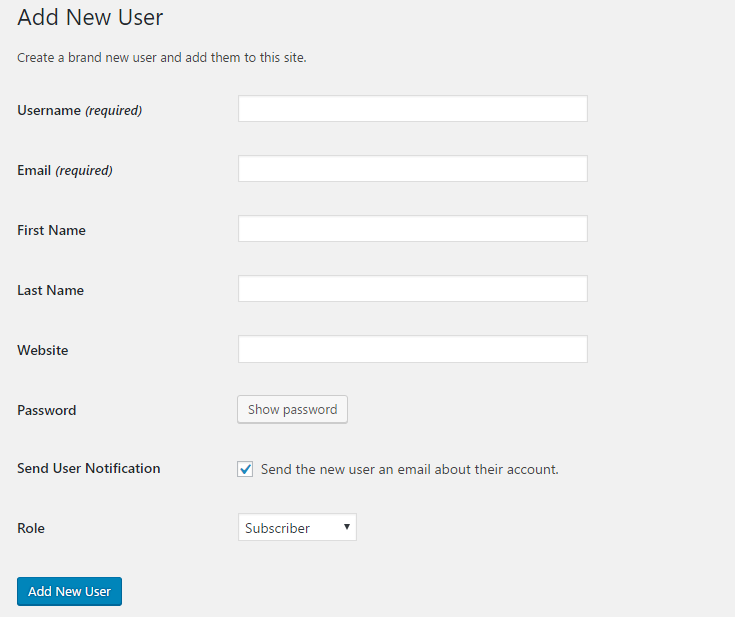
    Creating a new user account is a simple process. First, on the admin panel, you have to go to WordPress Sidebar Menu → Users → Add New.

    A screen is displayed as shown below:
    Creating a new user
    Creating a new user

    The first few fields here are self-explanatory. You have to enter some mandatory and optional details for the new user.

    The mandatory details include:

    • Username
    • Email

    The optional fields are:

    • First Name
    • Last Name
    • Website

    Next, the password field has a Show password button.

    Password field
    Password field

    Once you click this, you see there is an auto-generated password for the user. There is a Show/Hide button to reveal the password or wrap it underdots. Also, you can see a field indicating the strength of the password. In the below example, the password is strong.

    Click the Cancel button to set your own password. Make sure you create a strong password; read this article if you are not sure why.

    Generating password for the new user
    Generating password for the new user

    Next field is ‘Send User Notification’. You can enable this by ticking the checkbox to send an intimation mail to the new user’s email id.

    Sending user notification
    Sending user notification

    Table of Contents

    Toggle
      • Defining the new user role
    • Editing the user profile
    • Deleting the user account
    • Changing user role

    Defining the new user role

    The most important part of creating a new user account is deciding the user role of the account. You can read more about various user roles and capabilities in this article.

    Click the drop-down to choose the user role for the new account
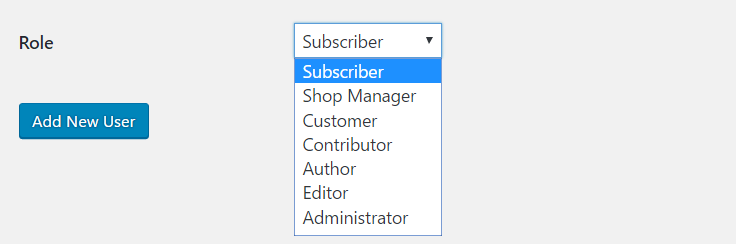
    Defining user role
    Defining user role

    Once you complete entering all the details, click the Add New User button. You have created a new user account; you can see it listed along with other users.
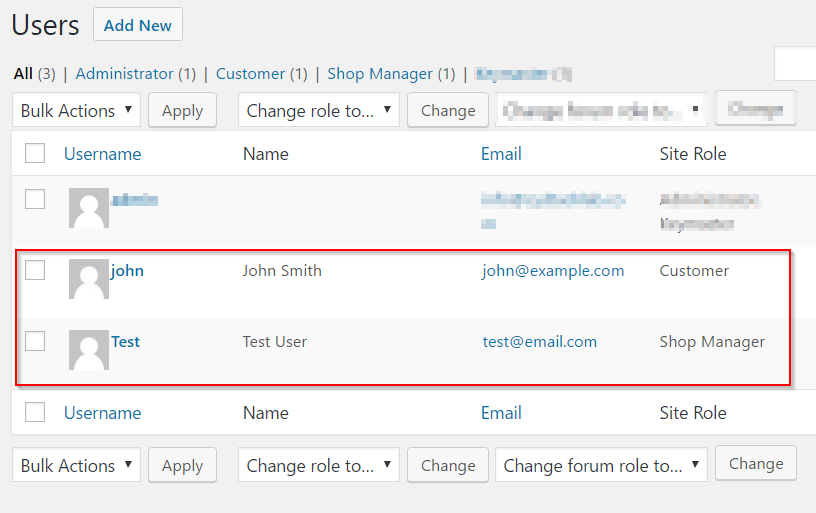
    New user account
    New user account

    Editing the user profile

    Once a user account is created, you can edit and modify the different aspect of the profile.

    For this, from the list of all users, hover the cursor around the one that you want to edit and click ‘Edit.’

    Editing user account
    Editing user account

    You can modify the following in the ‘Edit User’ page.

    • Personal Options – This concerns the display options for the user while viewing the site.
    • Name – In this section, you can change the user role from a drop-down. In addition, you can also change the user’s first and last names, nickname, and public display name. Remember you cannot change the username though.
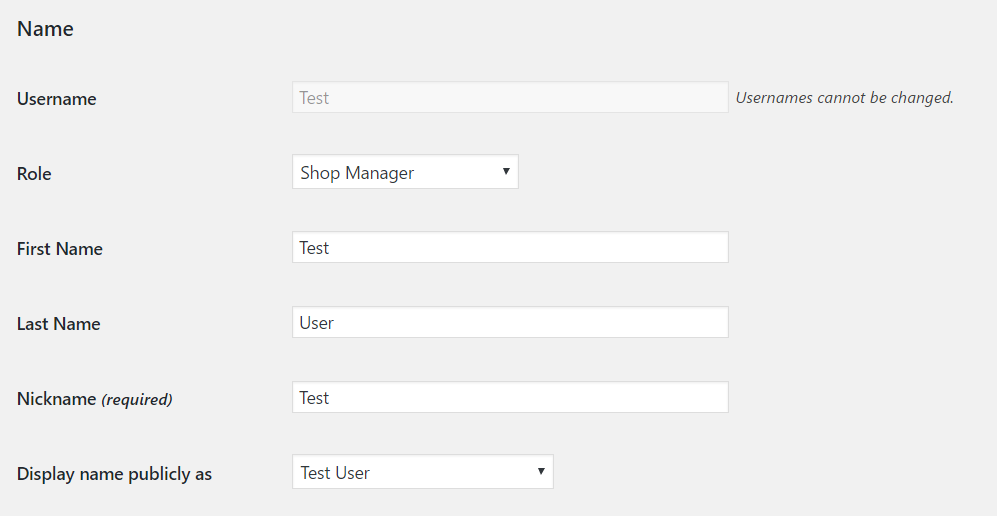
    Editing names
    Editing names
    • Contact info – You can change the email and website here if required.
    • About the user – Change the user bio and profile picture in this section.
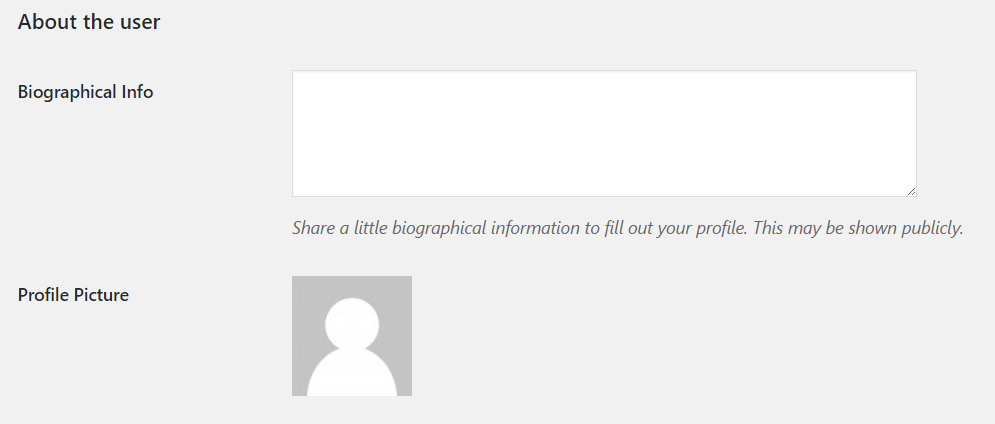
    Editing user bio
    Editing user bio
    • Account management – This section allows you to change the password for the user. Click the Generate password button for the new password.
    • WooCommerce also adds a Customer billing and shipping address forms to all users. You can use it if required, or go through this WordPress support thread if you want to remove it.

    Deleting the user account

    As the site administrator, you can delete other user accounts as well. For this, you can go to Users → All Users.

    One way to do this is by using the Bulk Actions drop-down. Select the account(s) you wish to delete by ticking the checkbox and click Apply button.
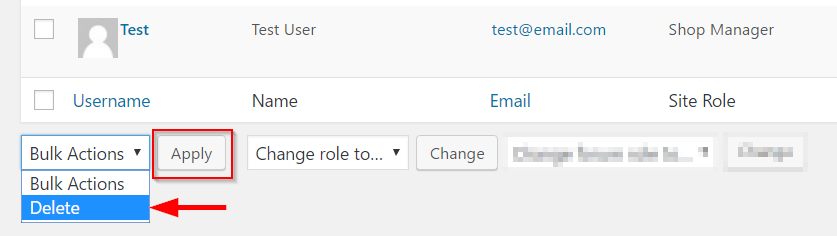
    Deleting user accounts
    Deleting user accounts

    You can also delete the accounts by simply hovering the cursor around the username and clicking ‘Delete’.

    Another option to delete user account
    Another option to delete user account

    Changing user role

    You can change the user roles also in a similar way. Tick the checkbox to select the users you want to modify. Select the new user role from the drop-down and click the Change button.
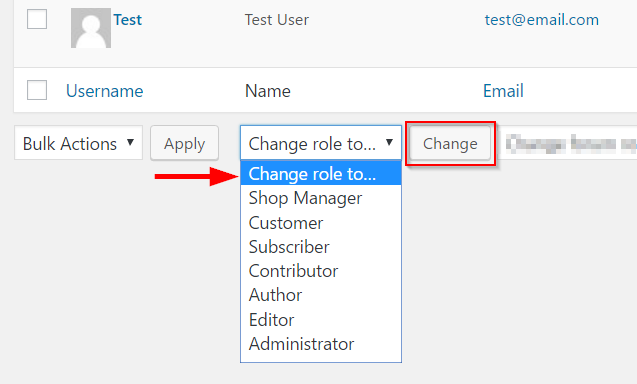

    Changing user roles
    Changing user roles
    • TAGS
    • Creating new account
    • How to WooCommerce
    • WooCommerce
    • WooCommerce Tutorials
    Facebook
    Twitter
    Pinterest
    WhatsApp
      Previous articleWooCommerce – How to Ensure Security of your User Accounts
      Next articleWooCommerce – How to Enhance User Management
      Sujith Reghu
      Sujith Reghu
      https://learnwoo.com
      Author - LearnWoo.com; Writing on WordPress and WooCommerce with an unflinching focus, and trying to woo the unyielding Google bots.

      RELATED ARTICLESMORE FROM AUTHOR

      Best WordPress and WooCommerce Themes A Complete Guide

      Best WordPress and WooCommerce Themes: A Complete Guide

      woocommerce holiday season prep guide

      WooCommerce Holiday Season Prep Guide: Tips, Plugins & FAQs (2025)

      WooCommerce Shipping Tips To Tackle Holiday Season Challenges

      WooCommerce Shipping: Tips To Tackle Holiday Season Challenges

      Sign in
      Welcome! Log into your account
      Forgot your password? Get help
      Password recovery
      Recover your password
      A password will be e-mailed to you.
      LearnWoo YouTube Channel Subscribe
      LearnWoo YouTube Channel Subscribe
      LearnWoo YouTube Channel Subscribe
      LearnWoo YouTube Channel Subscribe

      Expand your knowledge of eCommerce!

      Get cherry-picked Tips, Videos & Articles from Experts to your e-mail.


      Unsubscribe Anytime.

      WSDesk WordPress Helpdesk Plugin
      WSDesk WordPress Helpdesk Plugin
      WSDesk WordPress Helpdesk Plugin
      WSDesk WordPress Helpdesk Plugin
      WooCommerce Extensions
      WooCommerce Extensions
      WooCommerce Extensions
      WooCommerce Extensions
      Kinsta
      Kinsta
      Kinsta
      Kinsta
      AtlasVoice
      AtlasVoice
      AtlasVoice
      AtlasVoice
      LearnWoo Logo - Explore WooCommerce & Wordpress

      About LearnWoo

      LearnWoo explores everything about popular e-commerce platforms. Every day at work we come across varied facets of WooCommerce – the most popular wordpress eCommerce platform. We intend to share every such detail, be it basic or insightful, with millions of store owners, fellow developers, and all other WooCommerce, Shopify or any other eCommerce platform enthusiasts. Go through our posts and feel free to leave your feedback as comments. Happy Learning!

      • Contact Us

      POPULAR POSTS

      WooCommerce user roles

      WooCommerce – How to Understand User Roles and Capabilities (with video)

      May 8, 2020
      free WooCommerce Catalog Mode plugins

      7 Best Free WooCommerce Catalog Mode Plugins (with Video)

      June 3, 2020
      woocommerce different product types

      Different WooCommerce Product Types Explained in Detail (with Video)

      May 14, 2020

      Recent Posts

      • Keyword Cannibalization: A Complete Guide for Marketers (2026)
      • AI for Shopping: How AI is Changing Product Discovery in 2026
      • Best WooCommerce Extra Product Options Plugins to Offer Customization
      • Online Reputation Management: A Complete Guide for eCommerce
      • Traffic vs Conversions: High Traffic, Low Customers

      POPULAR CATEGORY

      • Blog1629
      • How To717
      • Listicles624
      • WordPress573
      • Tips & Tricks475
      • SEO & Marketing446
      • WooCommerce444
      • WooCommerce Advanced432
      • Sales & Marketing417

      Social Media

      • Subscribe on YouTube
      • Like on Facebook
      • Follow on Twitter
      • Follow on Instagram
      • Terms
      • Privacy
      • About
      • Partners
      • Contact Us
      • Careers
      • Interviews
      • Reviews
      • Deals
      • Facebook Group
      • Shop


      © LearnWoo - All rights reserved.